
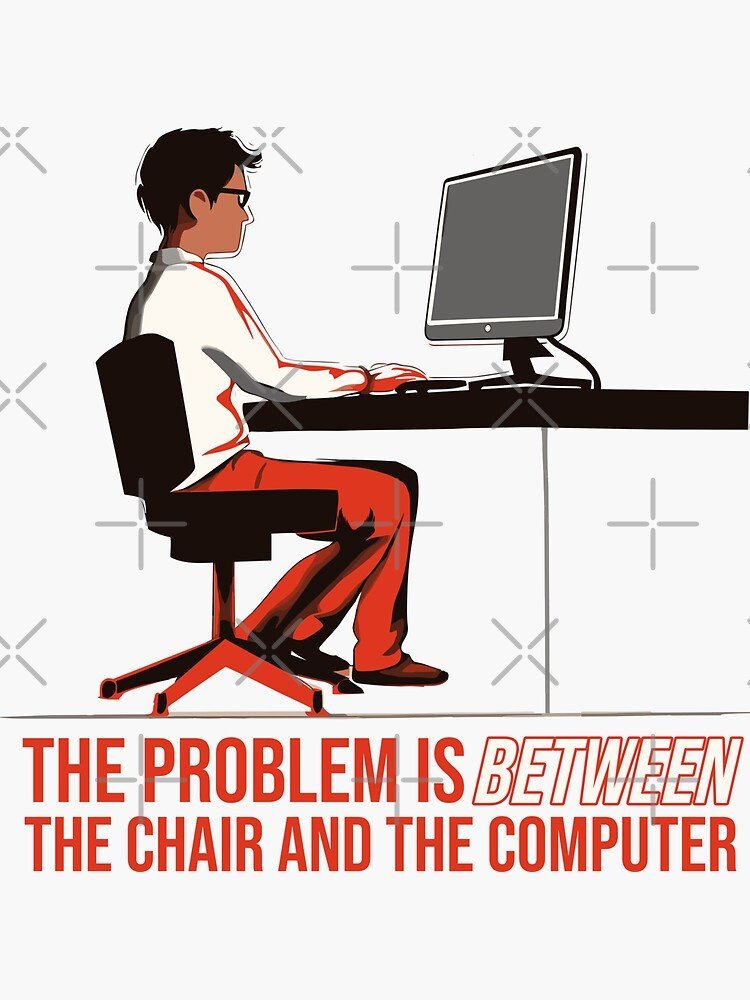
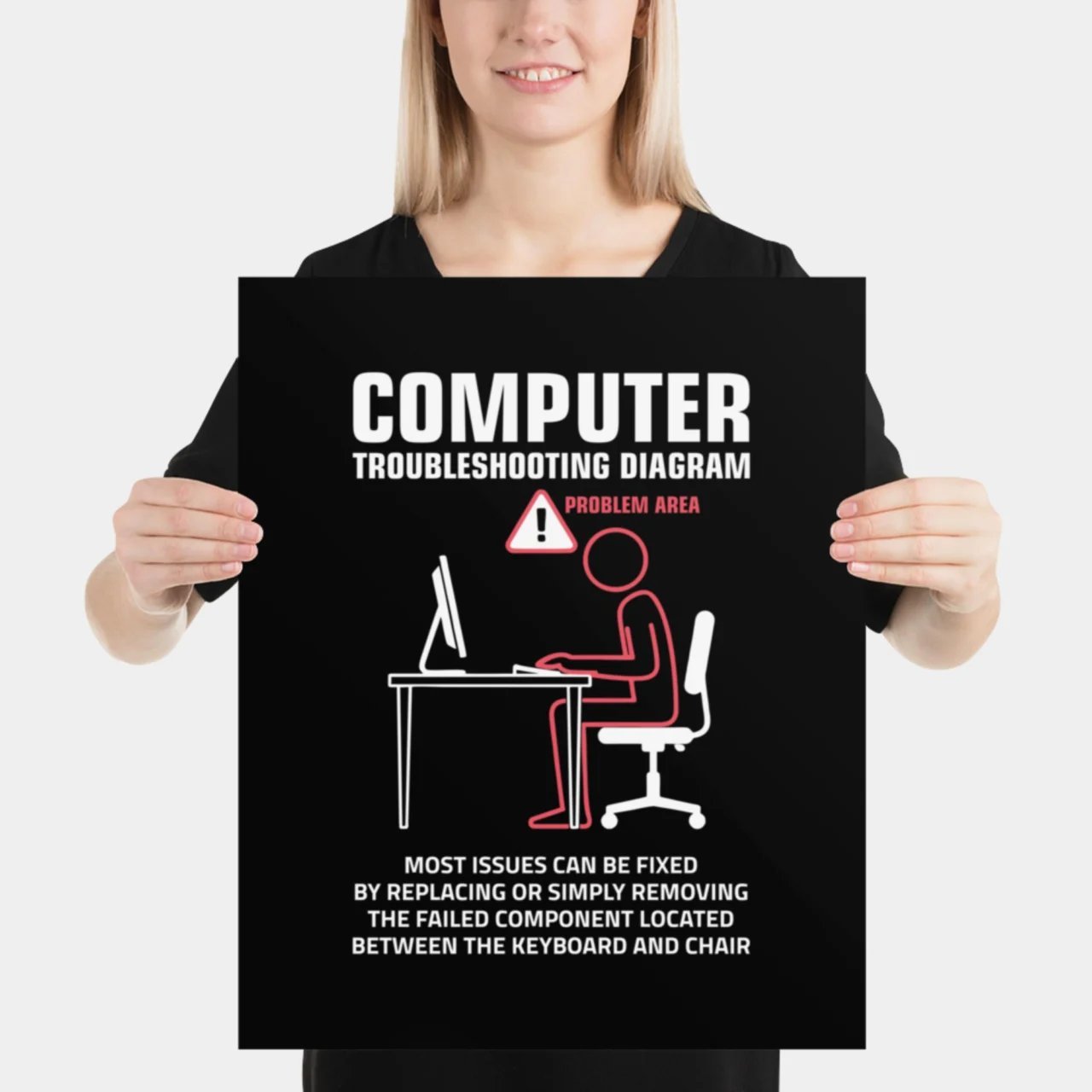
A problem between chair and computer means human error caused the tech issue, not broken hardware or bad code. Help desks use the slang acronym PEBKAC to describe this situation. The most common cause is a person clicking the wrong button, skipping a clear prompt, or misreading basic on-screen instructions.
Understanding the problem between chair and computer

People cause tech issues when systems show bad design or when workers rush through tasks. A user gets tired, clicks quickly through safety warnings, and loses data. Another reason is complex software interfaces. When an app hides main settings behind five menus, workers make wrong choices simply trying to finish normal tasks.
The Cybersecurity and Infrastructure Security Agency warns about related human habits in their guidance, showing how rushed staff reuse simple words that create security leaks. The cost of this haste is often a total system lockout that requires a full administrative reset.
If your interface requires more than three clicks to reach a primary setting, assume the design is prone to user error. In these cases, force yourself to stop and document the path before making changes. If the menu structure is intuitive, you can proceed with standard speed. Interface layouts vary by software version—check the application’s help documentation for your specific version before changing preferences.
Slow down and read system alerts
This step is for anyone who clicks “Yes” or “OK” instantly to clear screen popups. When a dialog box appears, read all the text before touching the mouse. Check the target file name, file path, and action word. If a box asks to confirm deleting 10 files, stop and count your open documents. You’ll know it worked when your software completes jobs without error screens or lost progress. The trade-off is clear: you spend 5 extra seconds on each task to save hours of file recovery later. This fix isn’t for automated scripts running overnight. If a system dialog warns you about drive partitions or registry permissions, stop immediately and call a certified technician.
Write down exact steps for tasks
This fix replaces memory with written steps for workers handling complex tools. Open a plain text editor and record every click needed to complete regular weekly reports. Note button names, dropdown choices, and wait times between screens. If you configure network permissions, write “Click Save, wait 10 seconds, then close the tab.” Test your list by following only what you wrote down. You’ll know it worked when you finish the job without missing fields or receiving server rejections. A mistake people actually make is keeping these routines entirely in their heads; this costs them hours fixing corrupted databases after a rushed Friday afternoon.
Add software guardrails and restrictions
This fix is for team managers and administrators handling shared office setups. Implement strict user roles instead of giving every account full administrative rights. Set file storage folders to read-only access for daily staff, and turn on autosave options set to five-minute intervals.
If X user only enters sales data, do A: assign basic data entry permissions. If Y user manages database backups, do B: require multi-factor authorization. This limits damage when someone makes an honest typo.
A common mistake is applying these restrictions to every device in the building. This creates unnecessary friction for staff who need rapid access to local files. Use this decision rule: if the device is a shared terminal or contains sensitive client records, enforce the full guardrail suite. If the device is a single private laptop used solely for web browsing, skip the restrictions to maintain workflow speed. The extra setup effort pays for itself by preventing catastrophic data loss on critical shared drives.
What not to do
Don’t blame coworkers when they trigger simple interface errors. Public shame forces team members to hide technical bugs rather than reporting them early. This silence turns minor glitches into systemic failures that cost weeks of development time to untangle.
Never turn off system warnings or pop-up notices in your settings. These alerts serve as your final safety net against accidental data loss. If you find them annoying, customize the notification frequency instead of disabling them entirely.
Avoid rushing to hit power buttons during slow operations. Cutting system power mid-write can corrupt file systems and data, requiring a repair or reformat of the drive. If a process hangs, wait at least five minutes before initiating a forced restart.
Finally, stop sharing root passwords across departments. Shared credentials make it impossible to audit who caused broken database entries. If you need access, use individual tokens with restricted permissions.
How to stop it happening again
Simple habit changes reduce daily desktop mistakes before they corrupt files or block network access.
| If you’re doing this | Do this instead | Why |
|---|---|---|
| Typing passwords from loose paper slips | Use an encrypted company password manager | Prevents typo lockouts and stops desk credential theft |
| Rushing through software upgrade screens | Read release notes and reboot intentionally | Prevents lost work from forced mid-day restarts |
| Leaving sensitive documents open overnight | Close running software and log off account | Stops accidental edits and background update crashes |
| Guessing how new administrative tools work | Request official training or use test sandboxes | Keeps live customer databases safe from errors |
Related guides